How to use Daybreak Blue to find and fix security bugs
Apply for OpenAI Daybreak Blue, enable it in Codex, and use Codex Security to scan, validate, and patch your own code.
By Nikhil Shukla ·
Daybreak Blue is best understood as a switch. OpenAI's docs sometimes write it as a model name, GPT-Daybreak-Blue, but what you do in practice is turn it on, in Codex or in an API request. Then a supported mainline model, such as GPT-6 Sol, reduces refusals for approved defensive security work.
It is easy to confuse with GPT-6 Cyber, the specialist model OpenAI announced on 5 November 2026. That model sits behind a different tier, Daybreak Red, for organisations doing offensive research. Blue is for defensive work; Red covers exploit validation and development. What Blue does is help a defender get through a code review, a triage session or a patch validation without the conversation being cut short.
I am building Creadefy, where the product is a verification page people have to be able to trust, so the defensive half is the half I need. This guide covers Blue access, a bounded Codex setup, and the full scan-to-fix workflow, with prompts you can adapt to your own repository. For Anthropic's approach, see the Mythos 5.2 guide.
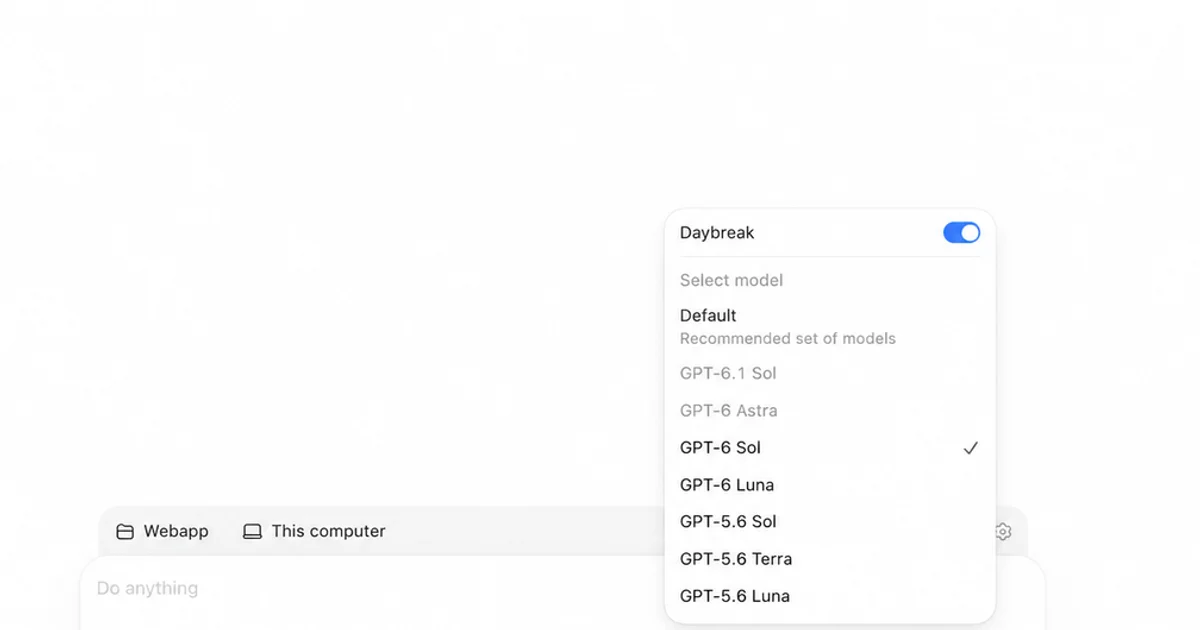
Codex with Daybreak enabled. Screenshot: OpenAI's Daybreak Blue guide.
What Daybreak Blue is, in plain terms
Daybreak is OpenAI's programme for approved security work, reached through what it calls Trusted Access for Cyber. In August 2026 OpenAI split it into two tiers.
Blue gives approved users supported general-purpose models with the system-level cyber safeguards relaxed for defensive work. OpenAI recommends it as the starting point for most defenders. Its docs list the jobs it is for: vulnerability discovery and triage, secure code review and threat modelling, detection engineering and incident response, malware analysis in a controlled environment, and remediation and patch validation.
Red gives separately approved organisations the purpose-trained cyber models, for vulnerability research, exploit validation and red teaming. GPT-6 Cyber needs a further model-specific approval on top of Red.
Which model you get under Blue has moved with each release, so check the table in the API guide before you build on it. As of 22 November 2026, that table lists GPT-6 Sol and Luna for Blue approval. Vaibhav Srivastav of OpenAI described the split in early November as Blue for finding and fixing bugs with GPT-6 Sol and Luna, and Red for testing exploits with the Cyber models.
The newer models are a different matter. OpenAI's current support table says GPT-6.1 Sol, GPT-6.1 Terra, GPT-6 Astra, and GPT-6.2 Astra and Sol need Red approval before their refusals drop. Blue approval alone leaves their standard safeguards in place, even though some of these models use daybreak_blue as the API value for an approved Red organisation.
So pick GPT-6 Sol when you turn Blue on, and check the model menu before you blame Blue for a refusal. The GrapheneOS project, which holds Blue as an organisation, wrote in mid-November that it does nothing for Astra or GPT-6.1 Sol, and that those models often refused to write a test case for an ordinary kernel bug. A developer reported that GPT-6.2 Sol refused work the previous model had accepted, and that falling back to GPT-6 Sol with Blue switched on fixed it.
Two numbers set expectations. With the August launch, OpenAI published an evaluation built from advanced offensive requests such as exploit chains and privilege escalation. GPT-5.6 Sol, the flagship at the time, completed 1.5% of them with standard safeguards and 2.0% with Blue. The specialist model behind Red completed 95%. In November, OpenAI reported that GPT-6 Astra with Blue refused every task on its new remote exploitation benchmark. Blue is a defensive tier by design.
The same August post has a more encouraging result. On OpenAI's evaluation of vulnerability discovery and report writing, the general model scored above the specialist cyber model, and OpenAI suggests the specialist's reports were shorter and less detailed. For finding and explaining bugs in your own code, the general model is a strong choice in its own right.
One early report points the same way. On 11 August, the day after the launch, Max Weinbach of Creative Strategies posted on X that Blue in Codex had found about five serious vulnerabilities in a platform he was building, including some that other models had missed, and fixed them quickly. Asked in the replies about false positives, he said all five were real. That is one person on his own code, but it is the job Blue is for.
How to get it
Individuals apply at chatgpt.com/cyber. Sign in to the account you want to use, choose Set up Daybreak, work through the checklist, then come back and verify your identity. OpenAI's help centre lists what the checklist needs:
- You are at least 18.
- You are on an eligible paid plan.
- Advanced Account Security is switched on.
- You have at least one compatible physical FIDO2 hardware key. OpenAI also asks you to register two secure sign-in methods through Advanced Account Security.
The last one is the hurdle. Peter Mahon, who documented the process for HexStrike, notes that synced or software passkeys do not count, and that people in his network have waited more than two weeks for approval. Order the key first, and apply well before the work that depends on it.
The setup itself is the quick part. Thibault Sottiaux of OpenAI's Codex team wrote in October that it takes about fifteen minutes, and that the middle of an incident is the wrong time to do it. Dan Guido, who runs Trail of Bits, called signing up essential for anyone who maintains software for other people. The wait Mahon describes is the review that follows.
Treat the identity check as a single attempt. OpenAI's troubleshooting page says support cannot override a failed verification or explain it, and its support account has told applicants in the developer forum that there are no retries or appeals. Apply from the account you mean to keep, choose individual or organisation deliberately, and have your ID and your key ready before you start.
Organisations go through an enterprise request form and business verification. Once the workspace is approved, the getting-started guide walks an owner through granting it. On ChatGPT Business it sits under Admin Console, Models, Specialty Models. On Enterprise it is a role override, with Daybreak Blue set to On under Cybersecurity and the model enabled beside it.
Know what you are agreeing to. Approval for Blue never implies Red. Organisational access covers your own internal work and does not extend to customers or to features you offer other people. Trusted Access does not include zero data retention unless you arrange it separately. And you may only use it on systems you own or are explicitly authorised to assess.
If you use a personal account, review the current Daybreak data controls before sharing sensitive repository material. OpenAI's account terms and controls can change; confirm your own setting in the product. OpenAI says Business, Enterprise and API data is not used for training by default.
If you work for a public body or an essential service with little budget, look at the Daybreak for Frontline Defenders grants that OpenAI announced alongside GPT-6 Cyber. It describes the fund as $1 billion to subsidise access for teams like that.
Switching it on
Approval does not turn anything on by default. In supported Codex clients, the Daybreak toggle starts in the off position. The CLI exposes /daybreak from version 0.163.0 onward.
In the ChatGPT desktop app, open Codex in your approved workspace, start a chat and open the model menu under the message box. Turn Daybreak on and pick the enabled model. OpenAI's getting-started guide suggests a harmless prompt to confirm it works: "Suggest two tests for a patch that rejects expired session tokens." If you get an answer and no access error, you are set.
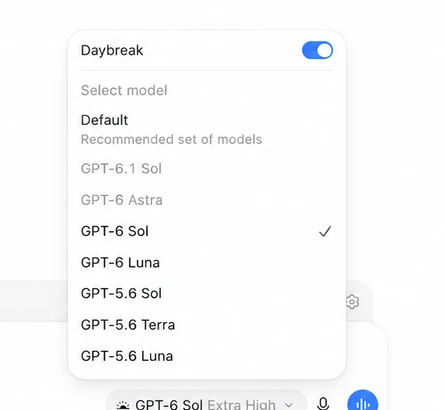
The model picker in OpenAI's official walkthrough. Availability depends on your workspace and approval.
In the Codex CLI, type /daybreak in an interactive session. For headless runs, pass it as a config override:
codex exec -c daybreak=true "<your prompt>"Through the API, you choose the programme on each request to the Responses API:
{
  "model": "gpt-6-sol",
  "access_programs": { "cyber": "daybreak_blue" },
  "input": "..."
}Three details from the API guide save debugging time:
- The parameter selects behaviour inside access you already have. It does not grant any.
- The response echoes
access_programs.cyber, so log it and confirm what was applied. - The value has to match the model, not your highest approval. Sending
daybreak_redwithgpt-6-solreturns aninvalid_access_programerror.
The API project also needs Daybreak Blue enabled in its settings, and it cannot be the default project.
Treat the API as an organisation route: the official API guide requires approval for an API organisation and access enabled on a named project.
Configure Codex before you scan
Trusted Access controls which model answers. It does nothing about what the agent can touch on your machine, and OpenAI's docs say so directly. Their recommended configuration is short enough to adopt whole. This is its example for Codex's config.toml, with my own description line:
approval_policy = "on-request"
approvals_reviewer = "auto_review"
default_permissions = "cyber-lab"

[features]
network_proxy = true

[permissions.cyber-lab]
description = "Security review of our own repository, local targets only."
extends = ":workspace"

[permissions.cyber-lab.filesystem]
glob_scan_max_depth = 3

[permissions.cyber-lab.filesystem.":workspace_roots"]
"**/.env*" = "deny"
"**/*.pem" = "deny"

[permissions.cyber-lab.network]
enabled = true

[permissions.cyber-lab.network.domains]
"lab.example.com" = "allow"What each part does:
- The profile extends the workspace profile, so the agent can edit inside the repository and nowhere else. If a job needs no edits, use the read-only profile.
- The two deny lines keep it out of environment files and private keys. Add your own sensitive paths.
- The domain allowlist only restricts anything because
network_proxyis on. Replace the example host with your approved test target. on-requestwithauto_reviewsends actions that cross the sandbox boundary to a reviewer before they run.
OpenAI's guidance is to avoid full access mode and the --yolo flag, because removing the sandbox boundary also removes the thing automatic review depends on. It also says to write down approved targets, excluded systems, prohibited actions and stop conditions before the model starts, and to enforce them with real controls as well as the prompt.
Keep API keys and cloud credentials out of prompts, the repository and environment variables. If a test needs credentials, issue short-lived ones scoped to that test.
Scan with Codex Security
OpenAI's scanner comes in three forms: a plugin inside Codex, an open-source CLI and SDK, and a cloud service that connects to GitHub. For a first scan of your own repository, the plugin or the CLI is enough.
The cloud version is now a separate preview plugin called Daybreak Defense Factory, which OpenAI launched on 12 November. It scans a connected GitHub repository in Codex cloud and can keep watching new commits or run on a schedule. A fix arrives as a proposed change with a patch-checker result, and Create PR opens a draft pull request for you to review and test. It is a recent preview, and I have not seen an independent evaluation of it.
When OpenAI upgraded the earlier cloud scanner in September, its post on X said access to cyber-capable models through Daybreak Blue was included by default. The setup page asks for a ChatGPT workspace with access to Daybreak, so check what your own workspace shows.
In the ChatGPT desktop app, open Codex, go to Plugins and install Codex Security, then open Security in the sidebar. Choose Scans, then + Scan. Pick the repository and Codebase, and leave Deep scan off the first time. The current scan guide recommends GPT-5.6 Sol with xhigh reasoning effort for scan quality. If you want to compare Blue on your own repository, select a Blue-compatible model such as GPT-6 Sol and record the model and effort with the result. There is an Additional context box for attack vectors and focus areas, and it is worth filling in with the short version of your threat model.
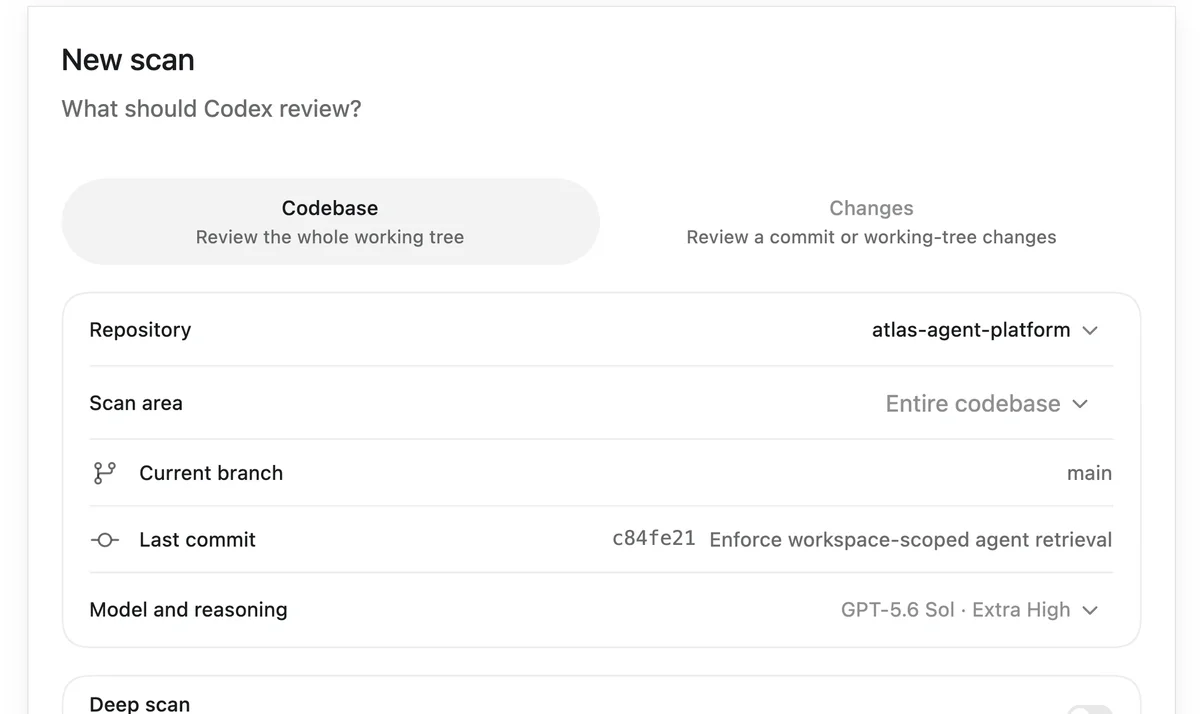
The new-scan form from OpenAI's Codex Security workbench guide. The example uses GPT-5.6 Sol at Extra High effort.
From a terminal, with a recent Node.js and Python 3.10 or later:
npm install --global @openai/codex-security
cs login

cs scan .                          # standard scan of the repository
cs scan . --path src/app/api       # one area
cs scan . --diff origin/main       # only what your branch changes
cs scan . --mode deep              # repeated scans, findings merged
cs scan . --codex daybreak=true # opt in to Daybreak for this scanThe Daybreak flag matters because scans use an isolated configuration. Having the toggle on in your personal Codex settings does not carry over, so set it on the command.
A scan saves a report.md, along with findings.json, coverage.json and scan-manifest.json. Read the coverage file as carefully as the findings. The quickstart is blunt that a completed scan can still have gaps, and that an empty findings list has not ruled out every vulnerability.
Scans also read any SECURITY.md at the root of the repository or of a component and treat it as guidance. Running cs policy . drafts one from the code and saves the draft outside the repository, so you can review it before copying it in. That file is the natural home for your scope and for the facts about intended behaviour that stop a scanner reporting your public pages as leaks.
From finding to merged fix
Each finding in the report shows its source evidence, what the attacker needs to start with, how it was validated and what remains uncertain. One detail is easy to miss. Validation can be done by source analysis alone, without running anything. Read the recorded method before you decide a finding is proven.
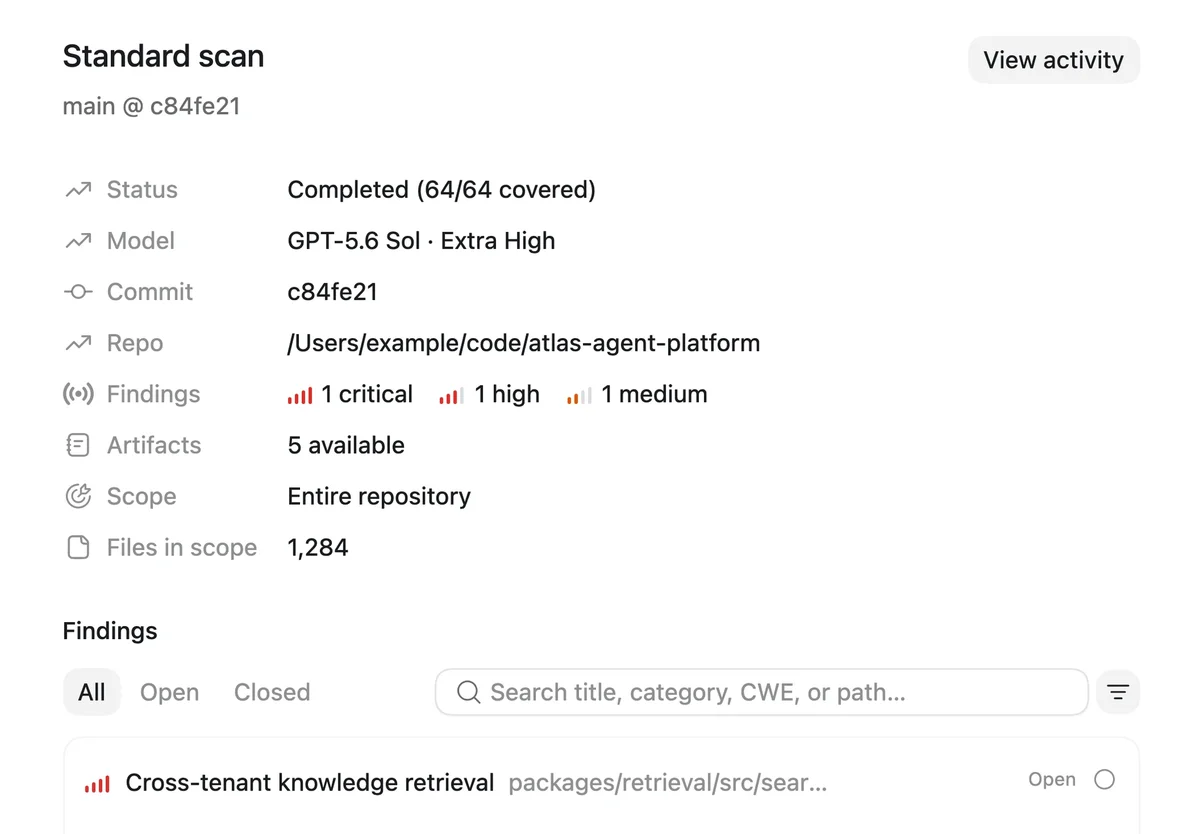
An example completed scan in OpenAI's workbench guide, not a scan of my repository. Read coverage alongside the findings.
Inside Codex, the plugin's skills cover the rest of the loop, and you can call them by name. The CLI has an equivalent for each.
| Step | In Codex | From the terminal |
|---|---|---|
| Check a finding against the source | $triage-finding | cs validate findings.json |
| Prepare a fix | $fix-finding | cs patch --scan SCAN_ID |
| Check an existing fix | $verify-fix | cs verify-fix --scan SCAN_ID |
| Review a branch or pull request | $security-diff-scan | cs scan . --diff origin/main |
There is also $resolve-dependency-alert, which traces a dependency advisory through your checkout and proposes an upgrade or a dismissal where the evidence supports one.
A fix verification comes back as one of three verdicts: fixed, still vulnerable or inconclusive, with the evidence behind it. Treat inconclusive as a request for a test, and write one.
The repository's custom validation example shows the kind of proof to aim for. A test acts as one user and requests another user's invoice from a server on loopback, then records whether it got through. On the vulnerable build the request succeeds. On the repaired build it returns 403. Nobody has to argue about a finding like that.
Hold the fix to the same standard. Trail of Bits, which patches open-source projects with Codex through OpenAI's Patch the Planet programme, went back over more than 130 patches its engineers had written with agents and maintainers had merged. It found 21 regressions. None weakened a security protection, but 16 broke behaviour that used to work. Its answer is a three-way proof: the reproduction fails on the original code, passes on the patch, and fails again when the patch is reverted. The workflow is published as two plugins, patching-bugs and regression-hunt, in its skills repository.
For automation, the CLI's exit codes are worth knowing. Zero means the scan completed without reaching your severity threshold. One means findings met the threshold you set with --fail-on-severity. Two means the scan itself failed, which tells you nothing about whether the code is safe.
Prompts that suit Blue
OpenAI's docs give a model example of a Blue request: review an approved lab repository for authentication weaknesses, rank the findings by evidence and impact, and propose patches without touching external systems. It names the scope, the bug class, the ranking rule and the boundary in a single sentence.
Here are three prompts built on that pattern. The first starts a scan with your own priorities:
Scan this repository with Codex Security. Focus on access control between organisations and on the public verification endpoints. Use the existing SECURITY.md as guidance.

When it finishes, give me the path to the saved report, the source evidence for each finding, and the areas you did not cover.The second writes the threat model the scanner will lean on. Its six sections are the fields Codex Security's own threat model format uses:
Draft a threat model for this repository. Do not report findings yet.

Use these sections: summary, assets, trust boundaries, attacker capabilities, security objectives, assumptions.

For every trust boundary, name the actors on each side, what crosses it, the control that is supposed to hold, and the file where that control lives.

Treat scenarios as hypotheses. Do not invent tenants, exposure or missing controls that the code does not show. List what you could not verify.The third triages something another tool reported, which is a job Blue is meant for:
$triage-finding

Here is a finding from <scanner>:
<paste>

Check it against the source in this checkout. Can the attacker our SECURITY.md describes reach the affected code? Give a verdict, the evidence, and what is missing if you cannot decide. Keep confidence and severity as separate judgements.That last line borrows from the severity guidance in the Codex Security repository. It tells its own agents to judge the attacker's real starting access, the boundary crossed and the extra harm done, and to keep confidence apart from severity. It is a good rule for people too.
When Blue says no
It will, sometimes. OpenAI says plainly that the model still refuses some highly dual-use requests under Blue, and gives pen testing a production system as the example. The Codex Security docs add that Daybreak "reduces some refusals but does not remove every safeguard", and that a refusal can still stop a scan.
Approved users also get blocked on work that used to run. In early October, about a dozen people in OpenAI's developer forum who said they held Blue reported that it had started refusing sessions that worked the day before. The notice read "Some cybersecurity requests are still limited, even when Daybreak is on." One said the block lifted after a few hours and then came back, and nobody from OpenAI had replied in the part of the thread I read.
Sean Heelan made the wider complaint later that month: defenders verified under either vendor's programme still get refused on patch analysis, triage and proof-of-concept work. In mid-November, Thibault Sottiaux asked Daybreak users on X what the cyber team should improve, so send your examples there as well as through support. And do not hang a deadline on an uninterrupted session.
The line between Blue and Red runs somewhere through the word proof. OpenAI's docs put controlled reproduction of a vulnerability and proof-of-concept validation on the Red side, while describing Blue as covering remediation and patch validation. In practice, ask for evidence in the form a defender needs: a regression test against a local instance that fails before the fix and passes after it. Ask for an exploit and you are asking for Red.
If a legitimate request is blocked, do not rephrase your way around it. Check the notice in the client and the request logs, and report it with /feedback in Codex so the false positive gets looked at. OpenAI's troubleshooting page says to confirm which model and access path you used, then contact support with the full error text, and to leave secrets and other people's data out of the report. If your work truly needs exploit validation, that is a conversation about Red, through your organisation.
On the API, enforcement can show up as an error with the code cyber_policy. OpenAI's guide recommends sending a stable safety_identifier for each end user. If something trips a threshold, the restriction can then land on one user and not your whole organisation. If you think access was limited by mistake, the guide says to contact support before the seven-day period ends.
What Blue does not change
Three things stay the same with or without Blue.
Results still vary between runs. Deep scan mode exists because one pass misses things: it repeats standard scans and merges what they find.
Findings still need a person. Daniel Stenberg lists Codex Security among the AI analysers the curl project has used, alongside AISLE and ZeroPath. Over eight to ten months, those tools led to between 200 and 300 merged bug fixes and a dozen or more CVEs. He is equally clear that they complement human review and do not replace it.
And the agent still needs a fence. OpenAI trained GPT-6 Cyber specifically to stay inside the scope a researcher sets, and it still recommends sandboxing, action review and human oversight for high-risk workflows. If the specialist model gets a sandbox, so should yours.
Where I would start
Apply first, because the hardware key and the review take the longest. While you wait, install Codex Security, write a SECURITY.md, and run a standard scan on your authentication and permission code with the configuration above. Nothing in that list needs Blue, although some tasks may hit a refusal without it. When approval arrives, turn the toggle on, pick GPT-6 Sol and rerun the same scan. You will see for yourself what it changes on your code.
Use the prompts above as a starting point, and read the Mythos 5.2 guide for the Anthropic workflow.
I am building Creadefy so that organisers can issue certificates anyone can verify. If you run events or courses, it might be useful to you. And if you have Blue and something here is out of date, tell me and I will fix it.
Sources
Product instructions and the model table were rechecked on 22 November 2026. OpenAI changes the Daybreak line-up, so follow the linked docs before relying on a specific model or control.
- OpenAI announcements: Expanding Daybreak (10 August 2026), GPT-6 Cyber (5 November 2026)
- OpenAI docs: Models and Trusted Access, Getting started with Daybreak Blue, Daybreak in the Responses API, cybersecurity safety checks, recommended configuration, Codex Security plugin quickstart, Trusted Access for Cyber help article
- Code: openai/codex-security, including its CLI docs, agent workflow guide and custom validation example
- Practitioners: Peter Mahon, HexStrike, Daniel Stenberg on curl
- More OpenAI pages: GPT-6.2 system card, Daybreak Defense Factory setup, findings and fixes, troubleshooting, developer forum threads on blocked sessions and failed verification
- Reporting: The Register on Defense Factory and Trail of Bits on agent-written patches
- Posts on X: OpenAI, Thibault Sottiaux, Vaibhav Srivastav, Dan Guido, Sean Heelan, GrapheneOS, Max Weinbach